
Most people do not need another AI tool. They need one small win.
I keep seeing the same pattern. We read threads, save prompts, watch demos, and somehow the day ends with zero output. So I started doing something simpler.
If you are wondering how to use AI without turning your day into a research project, here is the move. Pick one real task you already have to do today, and let AI help you finish it in the next 10 minutes.
Emails, meeting notes, planning, writing, it is all the same loop. One input, one rough draft, one quick cleanup, then you ship it.
Next up, I will show you the 10-minute setup and the exact first prompt to paste.
The 10-Minute Setup

Before you do anything, promise yourself one thing. You are not here to explore. You are here to finish one small task.
Open one AI tool you already have access to. Any is fine. The trick is to stick to one for now.
Now pick one task from this list. Do not scroll past it like it is a menu. Choose one and commit.
- Reply to a client or teammate email
- Turn messy meeting notes into action items
- Write a rough plan for your day
- Draft the first version of a message, post, or doc you have been avoiding
- Summarize a long thing you do not want to read twice
Now copy the raw material for that task. Not the perfect version. The messy version. A rough email thread, bullet notes, voice note dump, whatever you have.
Your First Prompt
Paste your text and use this prompt:
Prompt:
You are my assistant. Help me finish this in the next 10 minutes.
- Ask me any 2 questions you need
- Draft the best first version
- Then give me a shorter version that is clearer
That is it. This one prompt covers most “how to use AI at work” moments without getting fancy.
Next, we do the fun part. The 10-minute sprint, minute-by-minute, so you do not overthink it.
The 10-Minute Sprint
This is the part where you stop “trying AI” and actually get something done.
Minute 0 to 1: Drop the Mess
Paste the email thread, notes, or half-baked thoughts. Add one line of context:
- Who is this for
- What outcome do you want
- Any must-include detail
Example:
This is for a client. I need to confirm the timeline and ask for missing assets. Keep it friendly and confident.
Minute 1 to 3: Answer Two Questions
If the tool asks questions, reply fast. No essays. One line each.
If it does not ask questions, you ask it:
- What is missing?
- What is unclear?
- What is the risky part to say wrong?
You are basically giving it guardrails.
Minute 3 to 6: Get the Ugly First Draft
Tell it:
Give me the first draft. Do not over-polish. Just make it correct and complete.
This is the cheat code for how to use AI without getting stuck. You want a draft you can react to, not a masterpiece.
Minute 6 to 8: Make it Sound Like You
Now do a quick personality pass. Pick one vibe:
- Warm and human
- Direct and crisp
- Calm and confident
Prompt:
Rewrite this in a warm and human tone. Keep it short. No buzzwords. No dramatic phrases.
If you want it even tighter:
Cut this by 30 percent. Keep meaning. Remove filler.
Minute 8 to 10: Final Check and Ship
Ask for a quick risk scan:
Spot anything that could be misunderstood, too harsh, or missing a key detail.
Then send it. Or paste it where it needs to go. Done.
That is a complete loop. And if you repeat it daily, you build an AI daily routine that actually improves your output instead of your bookmarks.
Next up: the trap that kills progress, reading about AI instead of using it, and the simple fix.
The Trap: You Are Learning AI Instead of Using It
Here is the sneaky problem. Consuming AI content feels productive. It scratches the same itch as doing the work, but nothing ships.
I have done this too. I would save prompts like they were gym memberships. I felt prepared. I was not.
So here is the rule I use now.
If you spend 10 minutes reading about AI, you owe yourself 10 minutes using it on a real task.
That is it. No guilt. Just balance.
A quick way to make this automatic is to keep a tiny “AI wins” list. One line per day.
- Drafted a tough email in 6 minutes
- Turned notes into action items
- Fixed the tone of a message
- Summarized a doc before a call
This does two things. It keeps you focused on outcomes, and it proves you are building a real AI workflow, not a content habit.
Now, let’s kill the final boss of early AI use. Tool hopping.
You Need to Stop Speed Dating AI

If you want a fast way to stall, use five tools in one week.
One tool feels boring at first. That is exactly why it works. You stop re-learning the interface and start building a real instinct for what it can do.
So here is the rule I follow when I am getting serious about how to use AI.
Pick one AI tool and stick with it for 30 days.
Not forever. Just long enough to build muscle memory.
How to Pick Your One Tool
Do not overthink it. Choose based on where you already spend time.
- If your work is writing-heavy, pick the one that helps you draft and rewrite the fastest
- If you live in meetings, pick the one that summarizes and turns notes into actions cleanly
- If you juggle ops and planning, pick the one that helps you think in steps and checklists
What You Are Actually Building
You are building:
- Your own prompt style
- Your own reusable templates
- Your own shortcuts for common tasks
That is how AI for productivity becomes real. Not by finding the perfect tool. By getting good at one.
If you want a simple daily routine, use this 3-part prompt pattern.
- Draft it
- Tighten it
- Check it
Here is the template.
Draft: Create a first draft based on this context.
Tighten: Make it clearer and 30 percent shorter.
Check: Spot risks, missing details, or weird tone.
That is enough to cover most “how to use AI at work” moments without making it complicated.
Now we turn that into a habit loop you can run on autopilot.
The Loop That Makes You Good At This
If you want the simplest answer to how to use AI without getting lost, it is this.
Use it in a loop.
Not once. Not randomly. A loop.
Here is the loop I keep coming back to:
Make something
Show someone
Improve it
Ship it
Repeat
It sounds almost too basic, but this is where the skill lives. You are not trying to become an AI wizard. You are trying to remove friction from your day and raise your output quality over time. This is the same logic behind agent-style automation in production when the loop has triggers, handoffs, and rules.
Step 1: Make Something Small
Not a big project. A small deliverable.
An email. A summary. A plan. A draft. A checklist. A reply you have been avoiding.
Small wins build the habit.
Step 2: Show Someone Fast
This is the part people skip, and it is the part that levels you up.
Send the draft to a teammate, a friend, or even just read it out loud to yourself. The point is to get friction.
Use one question:
What would you change
That single question gives you better feedback than 20 hours of prompt collecting.
Step 3: Improve It with AI
Now go back to the tool with the feedback and say:
Here is feedback. Update the draft. Keep my tone. Keep it short.
This is where how to write better prompts gets real. Prompts are not magic words. They are instructions tied to a real context.
Step 4: Ship It
Do not keep polishing. If it is correct, clear, and kind, ship it.
Then log it as a win.
One line. That is all.
Because when you can look back and see 20 shipped outputs, you stop wondering if AI helps. You know.
Next, I will give you a tiny prompt pack you can reuse for emails, notes, planning, and writing, so you never have to stare at a blank box again.
A Tiny Prompt Pack You Can Reuse Forever
If you ever freeze at the input box like it is judging you, use these. They are simple on purpose. They work for emails, notes, planning, and writing.
I will give you four categories. Pick the one that matches your task, paste your raw text, and go.
1) Emails and Messages
Draft:
Write a reply that is clear, friendly, and direct. My goal is [goal]. I need to include [must include].
Shorten:
Make this 30 percent shorter without losing meaning.
Tone fix:
Rewrite this to sound calm and confident. No fluff. No dramatic phrasing.
Risk check:
Spot anything that could be misread or cause confusion.
2) Notes to Action Items
Extract:
Turn these notes into a clean list of action items. Include owner, deadline, and open questions.
Meeting recap:
Summarize this into decisions, next steps, and risks.
One line version:
Give me a one-sentence summary I can send to the team.
3) Planning and Thinking
Make a plan:
Given this goal and constraints, give me a simple step-by-step plan for the next 7 days.
Tradeoffs:
What are the top 3 options here, and what is the tradeoff of each?
Sanity check:
What is the easiest way this fails, and how do I prevent that?
4) Writing and Content
Outline:
Create a simple outline with headings and key bullets. Keep it practical.
Improve clarity:
Rewrite this to be clearer and easier to scan. Keep my voice.
Punch it up:
Make this more engaging without adding hype.
That is basically the starter kit for AI prompts for work. You do not need 200 prompts. You need 10 good ones you actually reuse.
Cool, now we package the whole thing into a tiny daily checklist you can run on autopilot.
The 10-Minute Daily Checklist
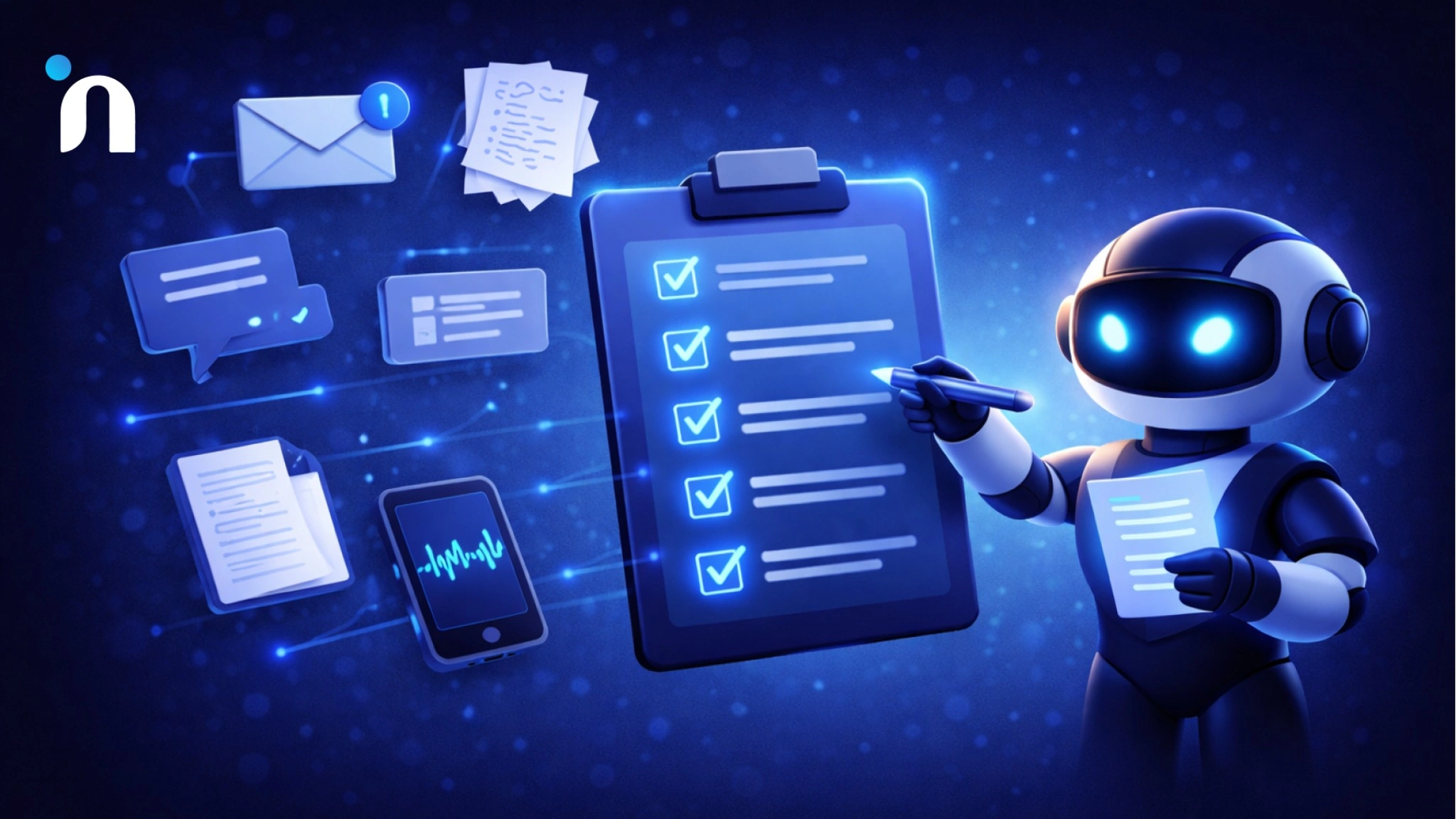
If you only remember one thing about how to use AI, make it this. You do not need a big plan. You need a tiny repeatable move.
Here is the checklist I use when I want results without thinking too hard.
1) Pick One Real Task
Choose something you were going to do anyway.
- Reply to an email
- Clean up notes
- Write a short plan
- Draft a message
- Summarize something long
One task only. That is the whole point.
2) Paste the Messy Input
Do not polish it first. The mess is the fuel.
Add one line of context:
What is this for, and what do you want out of it?
3) Get the Ugly First Draft
Say:
Give me the first draft fast. Correct and complete.
4) Do One Improvement Pass
Pick one:
- shorter
- clearer
- warmer
- more direct
Ask for that single edit. Do not stack five edits like it is a burger.
5) Ship It
Send it, post it, paste it, share it. Whatever shipping looks like for the task.
Then log one win.
One line.
That is enough.
Because after two weeks of this, you stop asking if AI is useful. You have receipts.
Close It Out
If you have been stuck on how to use AI, the fix is not more learning. It is more reps.
Ten minutes is enough to turn AI from a curiosity into a working habit. Pick one task. Paste the mess. Get a draft. Do one cleanup pass. Ship it.
Then do it again tomorrow.
That is the whole secret. Not smarter prompts. Not newer tools. Just a small loop you actually run.
And once you have a few wins under your belt, you can start getting fancy. Build templates. Save your best prompts. Turn repeat tasks into a lightweight AI workflow.
But first, get today’s win.
If you want to turn this 10-minute loop into a repeatable team workflow, Novura can help you pilot one use case with clear guardrails and measurable outcomes.
FAQs
Q1. How do I use AI in 10 minutes a day?
Pick one real task you already need to do, paste the messy input, ask for a first draft, do one quick improvement pass, then send it.
Q2. What is the easiest way to start using AI at work?
Start with emails, meeting notes, or planning. These have clear inputs and clear outputs, so you get a fast win without setting up anything.
Q3. Do I need to learn prompt engineering to use AI?
No. A simple pattern works for most tasks. Draft it, tighten it, then run a quick risk and clarity check.
Q4. Which tasks should I use AI for first?
Use AI for tasks you repeat often, like drafting replies, summarizing notes, turning notes into action items, or creating short plans.
Q5. How do I know if AI is actually helping me?
Track one small win per day. If you are shipping faster, writing clearer, or making decisions with less back and forth, it is working.