
Inbox zero is cute. Inbox useful is the flex.
Most teams set up email marketing automation and still burn time on the same loop every day:
Scan
Decide
Forward
How to use an AI agent to sort emails is about handing that loop to a system that can triage messages, pull the important details, and route them to the right owner so your day is not driven by your inbox.
Done right, AI email automation goes beyond labels. It spots intent, flags urgency, and tees up next steps while keeping you in control.
If you already live in Gmail or Outlook, you can layer this in without ripping up your workflow, and n8n gives you a clean way to connect triggers, classification, labelling, and routing into one flow.
The core idea is the same one we use when we talk about how AI agents work in real products.
An agent sorts messages by intent, urgency, and ownership, then takes the next safe step. That can mean applying labels or folders, summarising what matters, extracting key fields, and routing the thread to the right person. While email marketing automation is usually outbound, AI email automation keeps inbound requests from getting buried. The best approach starts with suggestions and routing, then automates only low-risk actions once accuracy is proven.
What Sorting Emails Means When You Use an AI Agent
Sorting is not just tidying up your inbox. It is deciding what a message is about, how urgent it is, and who should own it, without making someone read every thread end-to-end.
Once those three answers are consistent, everything downstream gets easier. Leads get routed faster, support issues stop waiting behind newsletters, and billing questions land with the right person before they turn into awkward follow-ups. McKinsey estimates the average interaction worker spends about 28% of the workweek managing e-mail, which is exactly why consistent sorting and routing have such a big payoff.
Traditional sorting relies on rules and folders, which breaks when every thread looks similar at a glance. Agent sorting adds classification, extraction, and a next step decision, so messages do not just get filed; they move forward.
This is also where email marketing automation and sorting diverge. Marketing flows push messages out, but sorting pulls the right work out of the noise, which is why AI email automation matters even for teams running polished campaigns.
Here are five categories that map cleanly to real work:
- Sales and Partnerships: Spots buying signals or collab requests, pulls company and context, and routes to the right owner fast.
- Support and Bug Reports: Captures the issue, urgency, and any device or account details, then sends it to a support queue with a clean summary.
- Billing and Invoices: Flags payment terms, invoice numbers, and due dates, then routes to finance before it becomes a follow-up chase.
- Hiring and Candidates: Identifies role and stage, extracts candidate details, and keeps hiring threads organised without manual sorting.
- Internal Approvals: Detects requests that need a sign-off, highlights what is being approved, and routes to the approver with context.
The Workflow Behind an Email Sorting Agent
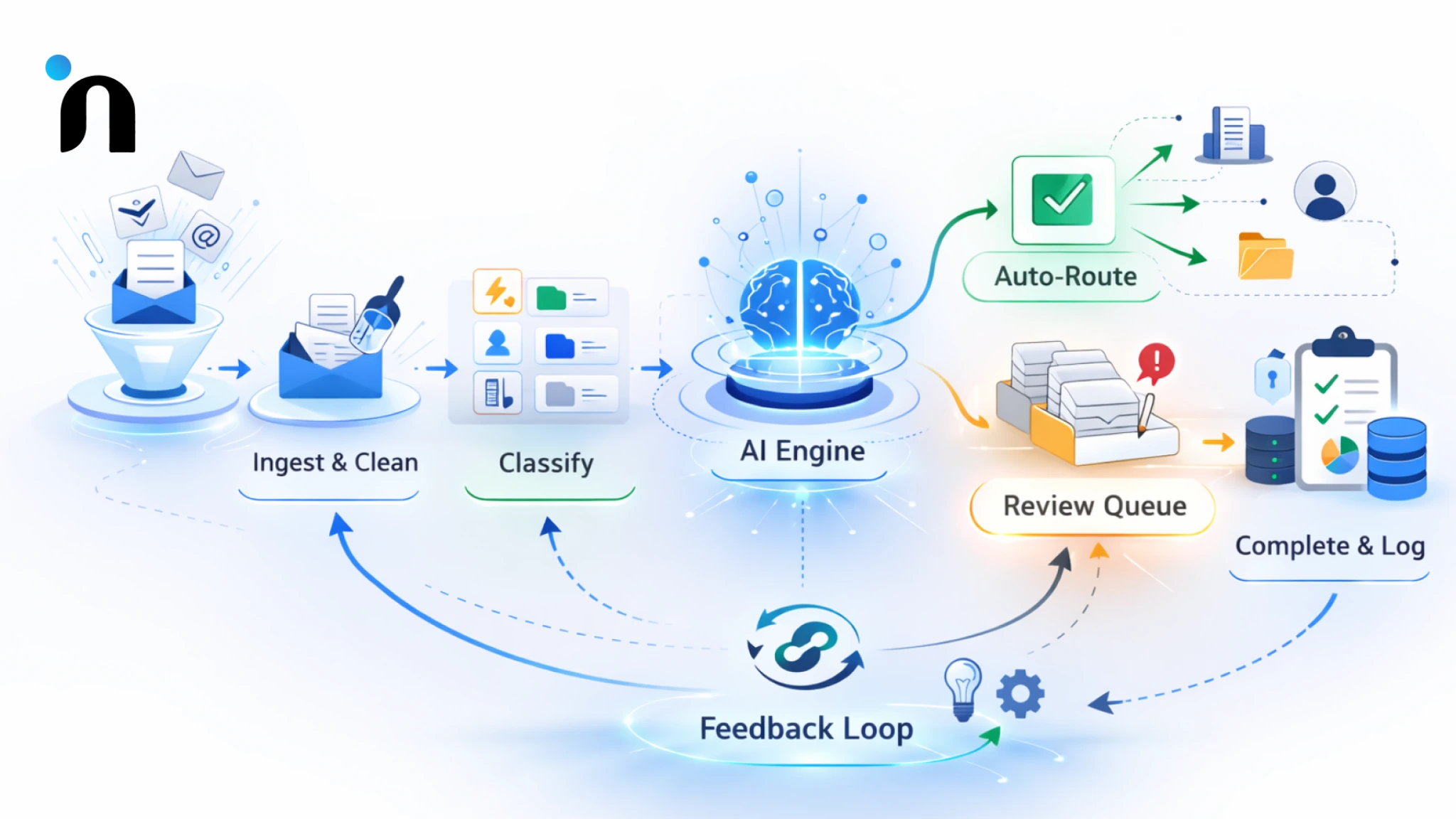
If your inbox is where work goes to get lost, the fix is not more folders. It is a workflow that makes the same calls every time: what is this, how urgent is it, and who owns it, then turns that call into a clear next step with context attached.
If you are wondering how to use an AI agent to sort emails without creating chaos, keep it boring in the best way. A consistent decision chain, clear owners, and a feedback loop. The same logic can be applied across functions too, and the structure is easier to design when you map it against department level workflows and use cases.
Step 1: Intake and Clean the Message
Capture the newest message content, sender, subject, and thread context, then remove signatures and long quoted history. This keeps AI email automation focused on the current request, not old back-and-forth. Treat attachments as metadata at first, name and type only. Store a message ID so you can de-dupe and avoid double processing.
Step 2: Classify Intent and Urgency
A solid AI email agent assigns a category and urgency in one pass, then attaches a confidence score. High-confidence messages can be routed right away, while low-confidence ones go to a review queue. Urgency should be rule-based and explicit, deadlines, payment terms, or severity language, not vibes. This keeps prioritisation predictable.
Step 3: Extract the Fields that Unlock Action
This is where email marketing automation usually stops, because labels alone do not move work forward. Pull the fields a person would otherwise hunt for,
- Company name
- Reference numbers
- Dates
- Actual ask
Keep the extraction strict and minimal so it stays accurate. When the fields are clean, routing and replies become faster and less error-prone.
Step 4: Decide the Next Safe Step
Even the best email marketing services cannot help if messages get sorted, but nothing happens next. Define allowed actions per category, assign an owner, create a task or ticket, draft a reply for approval, or park it in a waiting lane. Make approvals mandatory for sensitive categories early on. The aim is forward motion.
Step 5: Log Outcomes and Keep Improving
To keep AI email automation from feeling random, log what was predicted and what actually happened. Store category, urgency, owner, confidence, and the action taken. Review misses weekly, tighten categories, update examples, and adjust thresholds. This feedback loop is what turns a clever setup into a system people trust and rely on under pressure.
Three Operating Modes to Choose From for Email Sorting
Before you automate anything, decide how hands-on you want to be after a message gets sorted. Answer the following questions:
- Do you want the system to only suggest labels and owners?
- Do you want it to route threads to the right person?
- Do you want it to take low-risk actions automatically?
The right choice depends on two things,
- How expensive a mistake is for that mailbox
- Whether speed matters more than control.
Start with the safest mode for the highest stakes threads, then expand as accuracy proves itself.
If you are wondering how to use an AI agent to sort emails without breaking trust, start narrow and earn automation in layers. The mode you pick should reflect two things,
- How costly a mistake is
- How quickly you need speed across the inbox
Here are the three operating modes:
1) Suggest Only Mode
This is the safest starting point for AI email automation because it reduces thinking without taking control away. The system proposes category, urgency, and owner, and generates a short summary so a human can approve in seconds.
Use this when you are still defining categories, your inbox has lots of edge cases, or compliance matters. You get immediate time savings while collecting clean feedback that improves accuracy fast.
2) Semi Automatic Mode
In this mode, an AI email agent can route messages to the right owner and create the next step, like a task or ticket, while keeping approvals for anything sensitive. It is a strong middle ground because it removes the forwarding and chasing loop.
Use this when you have stable categories and clear ownership. Keep a review queue for low-confidence threads, and require approval for drafts that affect customers, billing, or commitments.
3) Automation Mode
Full automation is best for low-risk, high-volume mail where mistakes are cheap and reversible. This is where email marketing automation patterns translate well because you are dealing with predictable intents like confirmations, subscriptions, and routine updates.
Use strict thresholds, allowlists, and escalation rules, plus logging that makes errors easy to spot. Start with one category, measure outcomes for a week, then expand only when performance stays consistent.
Guardrails that Keep the System Safe and Predictable
Automation is only helpful when it is boring and reliable. Guardrails are what stop sorting from turning into accidental commitments, missed escalations, or messages landing with the wrong person. The best setups make it easy to review, easy to override, and hard to do the wrong thing.
Think of this as the difference between a clever demo and something your team will actually trust on a Monday morning. A lot of the safety work comes down to knowing when to use agentic AI vs generative AI, because one is built to take actions and the other is built to generate content.
1) Human Approval for High Impact Actions
Start by deciding what always needs a human. For AI email automation, approvals usually apply to sending replies, changing customer commitments, touching billing, or anything that feels irreversible. A clean rule is that if the action could embarrass you, cost money, or create legal risk, it needs approval. You can still auto-label and route, but keep the final click human until accuracy is proven.
2) Confidence Thresholds and a Review Queue
A strong AI email agent should never pretend it is sure when it is not. Add a confidence score, and create a review bucket for anything below your threshold. This prevents misroutes and gives you a steady stream of edge cases to improve the system. Over time, you raise the threshold only when your review queue shows consistent accuracy, not when you feel optimistic.
3) Allowlists, Blocklists, and Sensitive Lanes
Guardrails are also about deciding who gets special handling. Even with AI email automation, you want trusted senders, key customers, and internal leadership to follow stricter rules. Use allowlists for critical domains, blocklists for spam patterns, and separate lanes for legal, security, or VIP messages. This keeps the workflow predictable and prevents noise from contaminating priority.
4) Redaction and Data-Handling Rules
If you are using email marketing automation tools already, you know privacy is not optional. Apply the same discipline here. Strip or mask sensitive fields where possible, store only what you need for routing, and avoid processing attachment contents unless you have explicit permission and clear business value. The less data you keep, the less risk you carry.
5) Escalation Rules that Trigger Fast Action
Define conditions that should never sit in a queue. Mentions of payment overdue, outage, account lockout, cancellation intent, or security keywords should trigger escalation to a human immediately. That is how an AI email agent becomes an operational safety net instead of a sorting gimmick.
Implementation for Email Sorting Automation
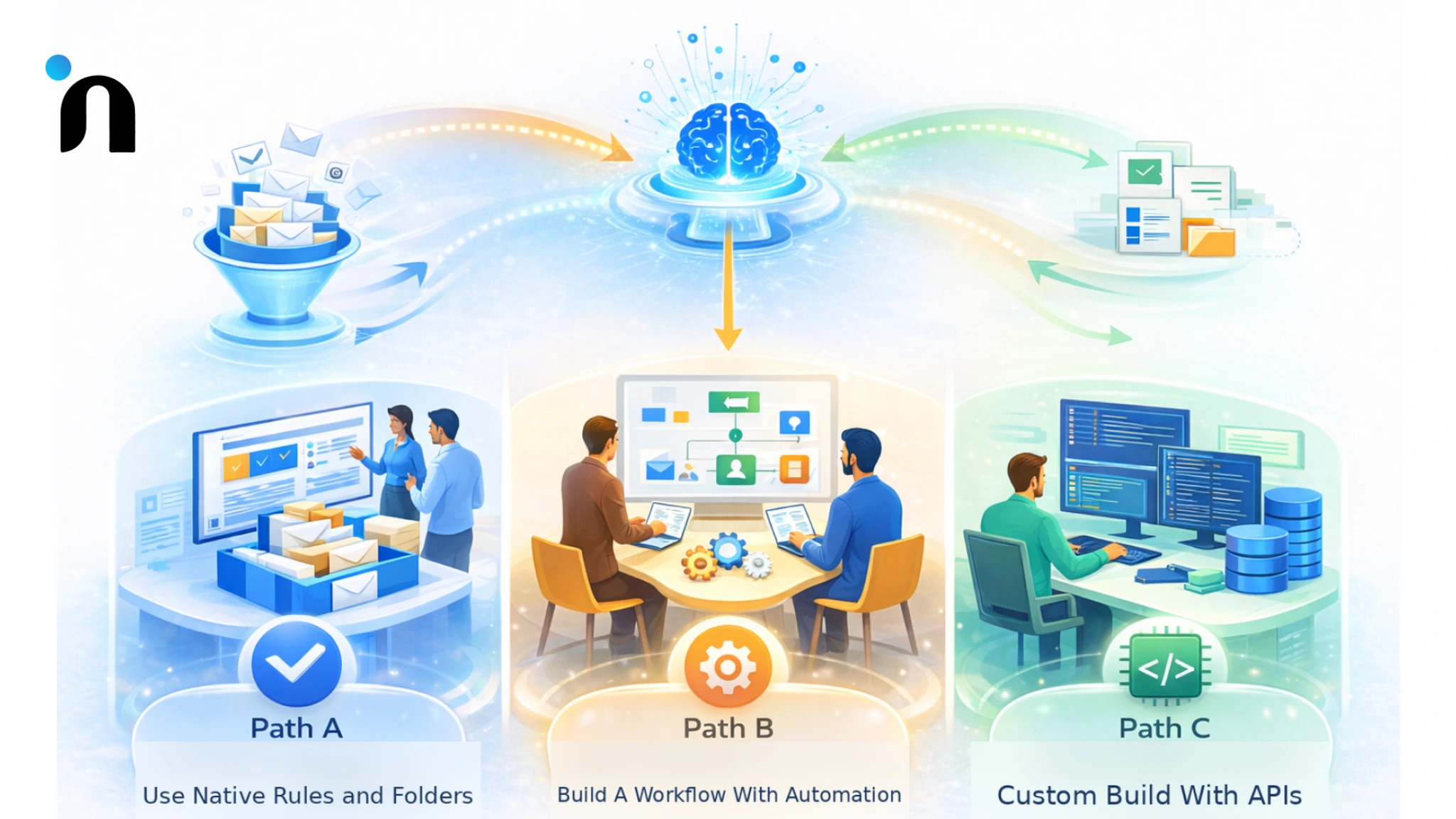
There is more than one way to set this up, and the “right” choice is the one that matches your constraints. Some teams want speed and simplicity, others need stricter control, deeper integrations, or governance from day one.
What matters is separating the workflow from the tool. Your categories, ownership mapping, guardrails, and escalation rules should stay consistent, so you can switch implementation paths later without rewriting the logic. Pick a path, ship a small pilot, measure what improves, and then expand.
Path A: Use Native Rules and Folders First
Start here when you want a fast order without introducing new tooling. Rules and folders work best for predictable patterns, like known senders, billing domains, newsletters, and recurring subjects.
The value is immediate because you reduce noise and create a baseline your team can agree on. Use this phase to define categories, owners, and what “urgent” actually means for your business.
The limitation is that rules do not understand intent well, so mixed threads still slip through. Treat this as your foundation, not your finish line.
Path B: Build A Workflow With Automation
This is the best fit when you want sorting to lead to action, not just organisation. A workflow tool lets you chain each step, add approvals, and keep an audit trail without custom code.
At a practical level, how to use an AI agent to sort emails is about turning classification and extraction into routing, tasks, drafts, and logs that your team can trust. Start with routing only, then add extraction once accuracy holds.
If you want a clean way to do this, build email automation with n8n so you can connect triggers, classification, routing, and logging in one flow. This is also where you can keep improving without rebuilding the whole system.
Path C: Custom Build With APIs
Go custom when you need tighter governance, higher volume handling, or deeper integration into your stack. APIs let you enforce strict data handling rules and tailor routing logic to your internal processes.
This path shines when you must track decisions, support complex ownership models, or integrate with CRM, helpdesk, and internal approvals at scale. You can also build stronger retries and monitoring to avoid silent failures.
The tradeoff is time and maintenance, so the high-value approach is to pilot one mailbox or one category first, measure impact, then expand deliberately with monitoring baked in.
Mini Playbook for Gmail Sorting With an Agent
If you want a fast win in Gmail, start with one mailbox and a small set of categories. The point is not perfect organisation. The point is speed and consistency, so the right thread hits the right owner with the right context.
Here’s a clean approach for how to auto-label emails in Gmail without creating chaos.
- Pick 6 to 10 categories that match real work
Sales, support, billing, hiring, internal approvals, and one catch-all. - Use a label naming system that stays readable
A simple pattern like Team/Type or Intent/Stage keeps labels clean as you add more. - Assign an owner and a default action per category
Each category gets a person or queue, plus what happens next: route only, create a task, or draft for review. - Create a separate lane for newsletters and non-work mail
Keep it out of your main categories so important threads do not compete with noise. - Decide what gets labelled automatically vs reviewed
High confidence gets labels and routing. Low confidence goes to a review label, so nothing gets misrouted quietly. - Define urgency in plain rules
Deadlines, overdue language, cancellations, outages, and payment terms beat gut feel every time. - Keep a weekly correction loop
Review mislabels, update examples, tighten categories, and adjust thresholds. This is what makes the system feel smarter every week instead of random.
Mini Playbook for Outlook Sorting With an Agent
In Outlook, the biggest win comes from making sorting visible and consistent across the team. Folders and categories are only helpful when everyone uses them the same way, so start by defining a small set of intents and who owns each one.
Here’s a practical approach for how to sort emails in Outlook without turning your mailbox into a maze.
- Choose folders or categories, then standardise the naming
Keep it simple and shared so routing does not depend on personal setups. - Map each category to an owner and a default next step
Route to a person, create a task, or draft a response for approval, depending on risk. - Define urgency rules that are easy to follow
Due dates, cancellations, payment terms, and outage language should always bubble up. - Use a review lane for low-confidence threads
Anything uncertain goes to a single folder or category, so it gets a quick human check. - Track misses and tighten the system weekly
Review wrong routes, update examples, and adjust thresholds so accuracy improves over time.
Building the Workflow With n8n
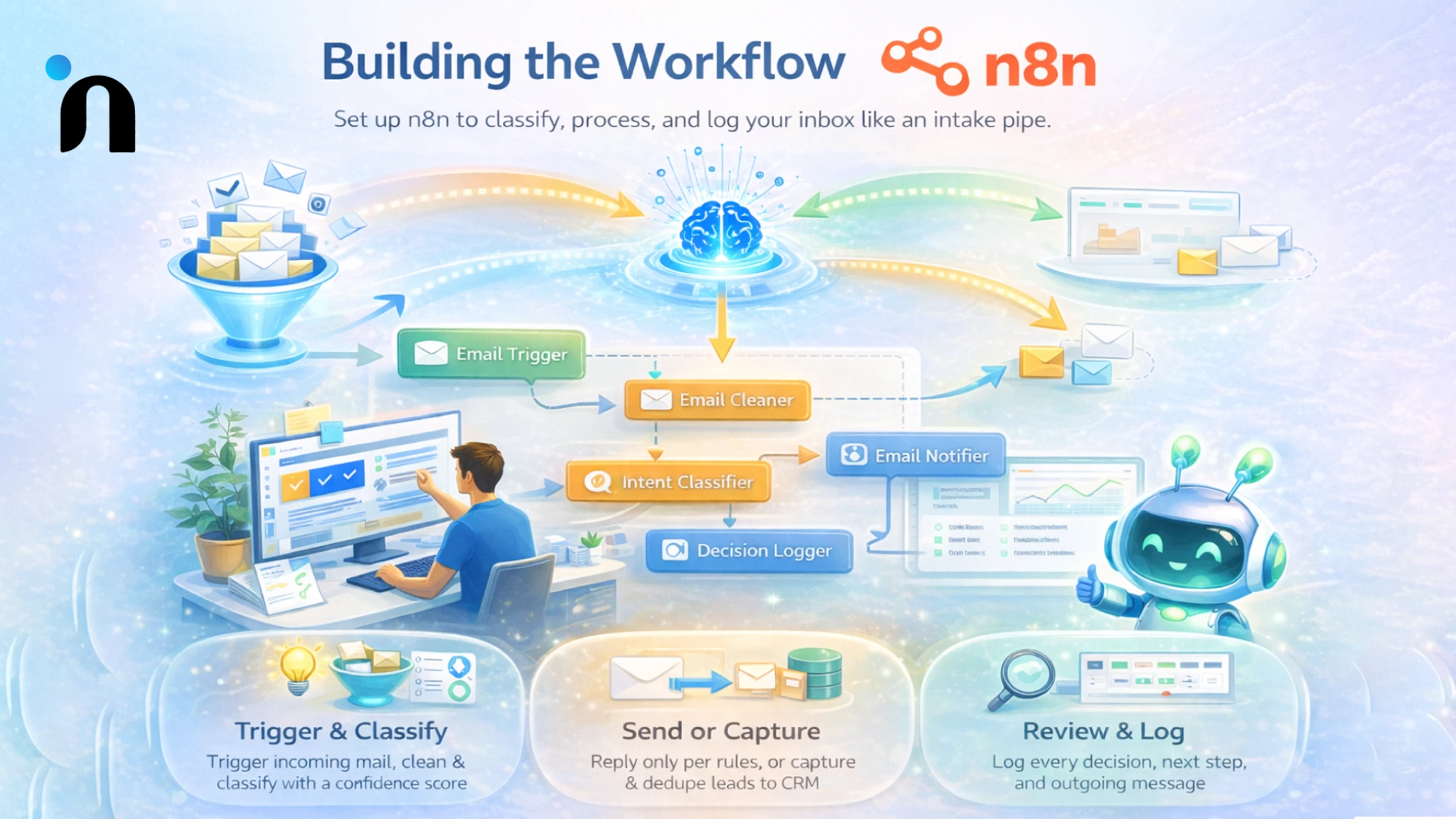
If you want something practical that does not require a custom build, build email automation with n8n by treating your inbox like an intake pipe. A message comes in, you classify it, you take the next safe step, and you log what happened so the workflow stays debuggable instead of mysterious.
The easiest way to keep this reliable is to start with one mailbox and one outcome. For example, auto-label and route sales threads, or extract key fields from support threads and push them into a queue. That is the difference between “cool automation” and n8n email automation that your team actually keeps.
A Simple n8n Flow that Works in Real Teams
- Trigger on new mail and pull the latest message content
- Clean the text so the workflow reads the newest intent first
- Classify intent and urgency, then attach a confidence score
- Apply the next step, label, route, create a task, or queue for review
- Log the decision and outcome so you can audit and improve
When You Need to Send a Reply or a Confirmation
Use the n8n send email node only after you have strict rules for what can be sent automatically.
Start with low-risk confirmations like “we received this” or “your request is queued,” and keep anything that changes timelines, pricing, refunds, or commitments behind approval.
Add guardrails like allowed recipients, approved templates, and a confidence threshold so uncertain threads never trigger a send.
Log every outgoing message with the original message ID and the reason it was sent, so you can audit fast. Also, add rate limits and retries, because reliability matters more than speed when outbound is involved.
When the Goal is Lead Capture or List Building
If you are cleaning up inbound leads, use n8n to extract email addresses from Gmail by capturing the sender address plus any addresses in the body, then saving them with context.
Do not store just the email; store the source, timestamp, thread link, and intent category so the record is usable later.
Run a dedupe check before writing to your CRM or sheet, and merge updates instead of creating duplicates. Add a simple quality filter to exclude no-reply domains, disposable emails, and internal addresses.
Finally, tag the record so it can drop into email marketing automation flows later without manual cleanup.
A 7-Day Pilot Plan that Sticks
If you are wondering how to use an AI agent to sort emails, the safest way is to pilot it like a product release, with a small scope, clear rules, and tight feedback. Pick one mailbox, one outcome, and one team that will actually use it daily, then measure what changes in routing speed, missed requests, and follow-ups.
This is the same mindset as a practical build process for an agent, where you ship a thin slice, validate it with real inputs, then expand what the system is allowed to do.
Here’s a 7-day rollout that gets you to real value without letting automation run ahead of trust.
Day 1: Define the Work
Pick one mailbox and one measurable outcome, such as faster routing or fewer missed requests. Define 6 to 10 categories that match real work and assign an owner to each. Write urgency rules in plain language and decide what must always require approval before any action for the whole team.
Day 2: Collect Examples
Collect real examples, not made-up ones. Pull 50 to 100 recent threads per category, including messy edge cases, forwarded chains, and short replies. Highlight the signals you want captured, like order numbers, deadlines, and cancellation intent. Store these as your training set for weekly calibration and accuracy checks later.
Day 3: Set Up Classification and Extraction
Design the classifier and extractor together. For each category, define required fields and acceptable formats, company, reference ID, dates, and a one-line summary. Add confidence scoring and a review lane for uncertain messages. Set up de-duplication so the same thread never creates duplicate tasks or notifications by mistake.
Day 4: Add Guardrails
Add guardrails before you add speed. Define what can happen automatically, what must be approved, and what must escalate instantly. Use allowlists for key domains, blocklists for spam patterns, and strict rules for sensitive topics like billing, legal, and security. Document the rules so reviewers stay consistent across all teams.
Day 5: Connect Downstream Actions
Connect sorting to real outcomes. Route each category to an owner or queue, then create the next step as a task, ticket, or draft. Keep a log with category, urgency, owner, and action taken. Add retries and alerts so failures surface quickly instead of silently stalling in your daily workflow.
Day 6: Run Shadow Mode
Run shadow mode for at least a full business day. Let the system classify, extract, and route on paper only, then compare its decisions to your team’s actual choices. Track misroutes, missing fields, and false urgency. Tighten prompts, rules, and thresholds until reviewers agree it is dependable for your environment.
Day 7: Go Live and Review Daily
Go live with one category or one mailbox lane first. Enable routing only for high-confidence cases and keep everything else in review. Hold a 10-minute daily check to review misses and adjust. When accuracy holds for a week, expand categories and introduce low-risk actions with clear metrics.
Common Mistakes that Derail Email Sorting Automation
Even a solid workflow can feel “meh” if a few avoidable mistakes creep in. The pattern is usually the same. Teams automate the flashy parts too early, skip the boring controls, then lose trust when something small goes wrong.
If you are wondering how to use an AI agent to sort emails in a way people actually stick with, treat mistakes like design inputs. Fix them once at the workflow level, and you save hours of cleanup later, plus you avoid the slow drift back into manual sorting.
Here are a few mistakes that usually kill momentum.
1) Auto-Sending Replies Too Early
Starting with auto-sending replies feels tempting because it looks like instant leverage, but it is where trust dies the fastest. Even with email marketing automation in place, outbound mistakes are louder than sorting mistakes. Keep replies behind approval until you have weeks of clean routing and extraction. When you do automate, start with low-risk confirmations and strict templates, then log every send so you can audit and roll back fast.
2) Too Many Categories
More categories do not equal more clarity. If your list grows past what a human can hold in their head, people stop using it, and everything drifts back into a mess. This is where the best email marketing services still cannot help, because the issue is internal decision noise, not delivery. Keep 6 to 10 categories, add one review bucket, and only split a category when ownership or next step truly changes.
3) No Owner Mapping
Sorting without ownership is just rearranging clutter. If a message lands in a label or folder but nobody is accountable, it will still sit there. For AI email automation to pay off, every category needs a default owner or queue and a defined next step. Make ownership visible, use a fallback owner for edge cases, and add reminders or SLA rules, so routed threads do not quietly stall.
4) Vibes-Based Urgency
Urgency can not be a feeling. If the system relies on guesswork, your team will override it, and confidence drops fast. A good AI email agent uses explicit signals like due dates, payment terms, cancellation intent, outage language, and VIP sender lists. Write those triggers down, review them monthly, and add an escalation lane for anything that matches them. Predictable urgency beats clever urgency every time.
5) No Audit Trail
When something goes wrong, you need to know what happened in seconds, not hours. Without logging, the workflow becomes a black box, and people stop trusting it. For n8n email automation, store message ID, category, urgency, owner, confidence, and the action taken, plus timestamps. Then review misses weekly, track which rules caused them, and tighten your prompts or thresholds based on real evidence.
6) Using the Send Node Without Controls
The n8n send email node should be treated like production code, not a convenience. Put guardrails around who it can email, which templates it can use, and what conditions must be met before it fires. Add approval steps for anything customer-facing at first, and rate limit to avoid accidental bursts. Always include thread references and log outgoing messages so you can trace and undo mistakes quickly.
7) Tool-First Build
A tool-first setup usually creates a workflow that looks busy but does not move work forward. Before you build email automation with n8n, define the categories, owners, allowed actions, and review process, then wire the tool to that logic. Start with one mailbox and one outcome, run shadow mode, and only then automate. When the workflow is clear, n8n becomes an accelerator instead of a distraction.
How Novura Helps You Ship This Without Chaos
Most teams do not need another tool recommendation. They need someone to turn a messy inbox into a workflow with clear ownership, guardrails, and a rollout plan that sticks. That is where Novura comes in. We focus on the system first, then wire it into the tools you already use.
When the question is how to use an AI agent to sort emails without creating operational risk, we start by mapping your inbound categories, defining what “urgent” means in your world, and agreeing on what the system is allowed to do versus what must stay human. Then we implement a thin slice, run it in shadow mode, and tighten accuracy using real examples so trust builds fast.
From there, we connect sorting to outcomes, routing to the right owner, tasks, and tickets that actually get handled, and drafts that reduce response time without creating risk. The result is AI email automation that feels boring in the best way, and that’s predictable, measurable, and easy to improve week after week.
Conclusion
Once your inbox has a consistent way to decide intent, urgency, and ownership, everything gets easier. The work stops hiding inside threads, and your team stops spending prime hours scanning, forwarding, and chasing.
The real trick in how to use an AI agent to sort emails is keeping it simple and measurable. Classify, extract what matters, route to the right owner, then review outcomes so the system improves instead of drifting.
If you want help turning this into a workflow that ships fast and stays safe, Novura can help you define the categories, guardrails, and rollout plan, then implement the first version in a tight pilot. If you want, share what inbox is hurting most and what outcome you want, and we will map a clean first slice to ship.
FAQs
Q1. Can email sorting work with email marketing automation too?
Yes. Outbound flows handle campaigns, while inbound sorting routes real requests to the right owner and the next step. Connect them by tagging intent and only sending clean, permissioned contacts into sequences.
Q2. Is AI email automation safe?
Yes, if you use guardrails. Start with suggestions and routing, require approvals for sensitive actions, send low-confidence messages to review, and log every decision.
Q3. Should I use an AI email agent or just rules?
Use both. Rules handle predictable noise like newsletters. An AI email agent handles messy threads by classifying intent, extracting key fields, and deciding the next safe step.
Q4. Can you automate Gmail labeling?
Yes. For how to auto-label emails in Gmail, keep labels limited, auto-apply only for high-confidence messages, and send uncertain ones to a review label so nothing gets misrouted quietly.
Q5. Can you sort emails in Outlook automatically?
Yes. For how to sort emails in Outlook, use shared folders or categories, map each to an owner, and keep a review lane for uncertain threads.
Q6. Is n8n a good fit for email automation?
Yes. To build email automation with n8n, start with one mailbox and one outcome, then layer in classification, routing, logging, and only then low-risk actions.
Q7. Can n8n pull contacts from inbound emails?
Yes. To use n8n to extract email addresses from Gmail, capture sender and in-body addresses, dedupe, and store source context before pushing anything into lists.
Q8. Can n8n send replies automatically?
Yes, with controls. Use the n8n send email node with strict templates, recipient limits, approvals for sensitive cases, and logging for every send.